
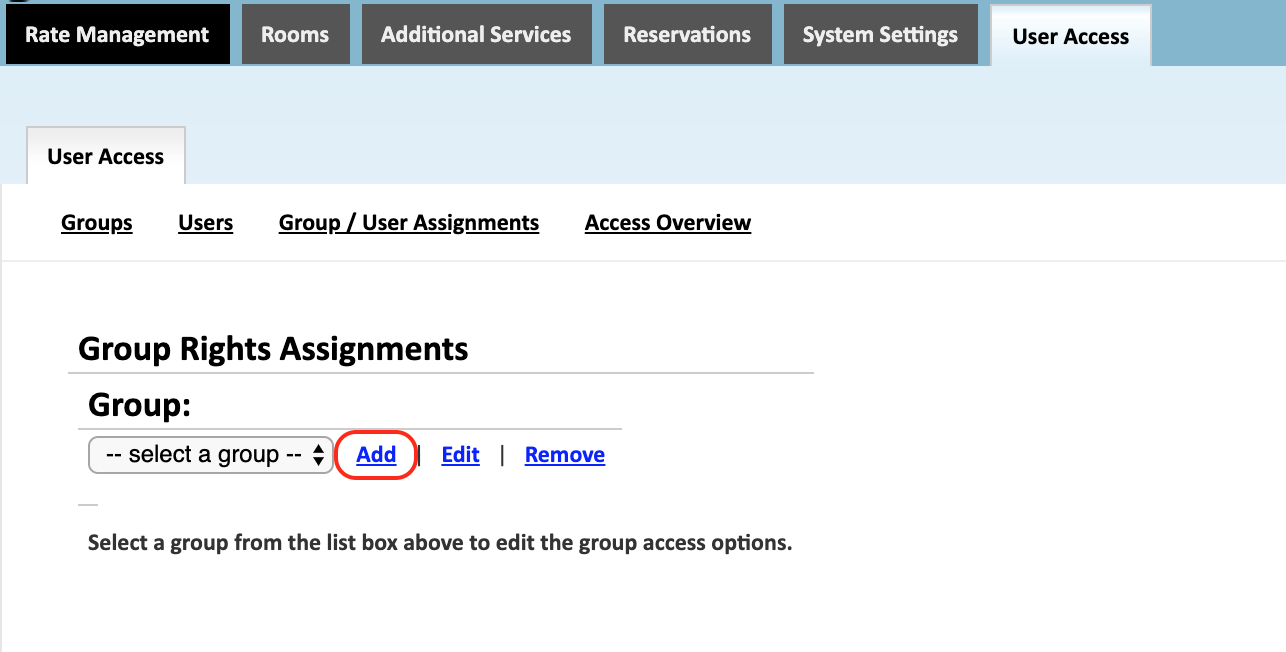
This section of the User Access tab is used to create and edit user groups. Groups are used to assign access rights to users that are part of the group.
-
Group
Select a group to edit. The following options are available:
Add - Use this button to add a new group. When the following window appears, simply enter the Group Name and click Save New Group.

Edit -Select the edit button to change the groups name.

Remove - Select the remove button to delete a group. The following screen is used to select and delete the group.

-
Administrators Group Access
Once you save your new group, select it in the dropdown. Do not hit Edit. The screen will automatically change to look like the following:
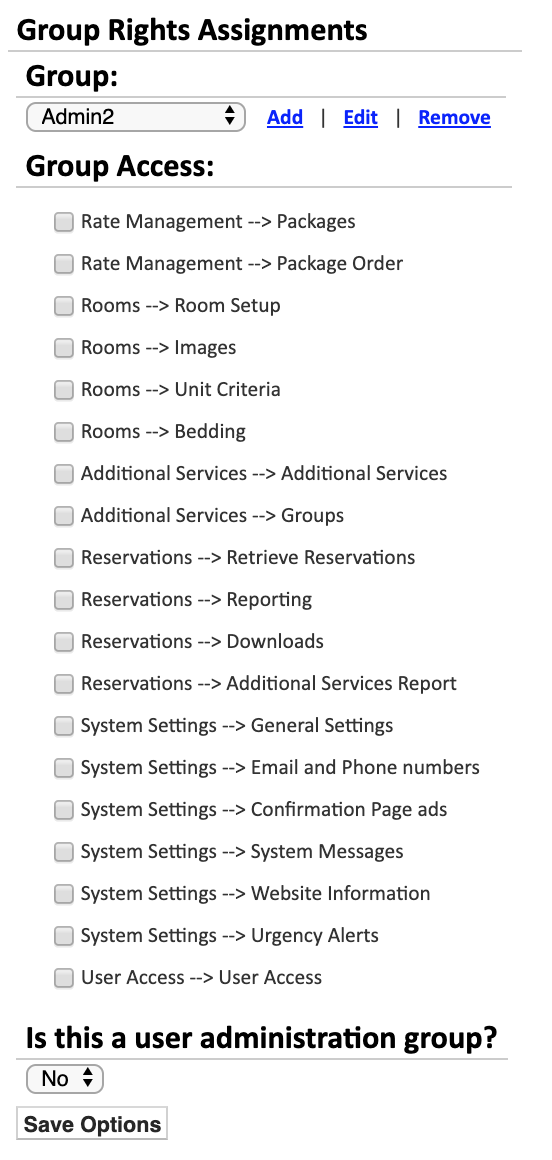
Use the check boxes beside each access right to control which Tabs the group has access to. The system is split into a series of top level tabs that each contain aseries of sub tabs. The access check boxes use the naming convention Top Level Tab-->Sub Tab to designate the tab that is being controlled. A few examples are:
Packages Tab = Rate Management--> Packages
Room Images Tab = Rooms--> Images
-
User Administration Group
Select yes if the group contains users that have Administrative privileges. This setting controls if the users in the group should have the ability to set access rights for other groups.
Comments
0 comments
Please sign in to leave a comment.