
The General Settings section of the intranet controls the use of different features and sets default system values.
The image below will act as a guide to this article. Use the points of reference below the image to jump to different parts of the article.
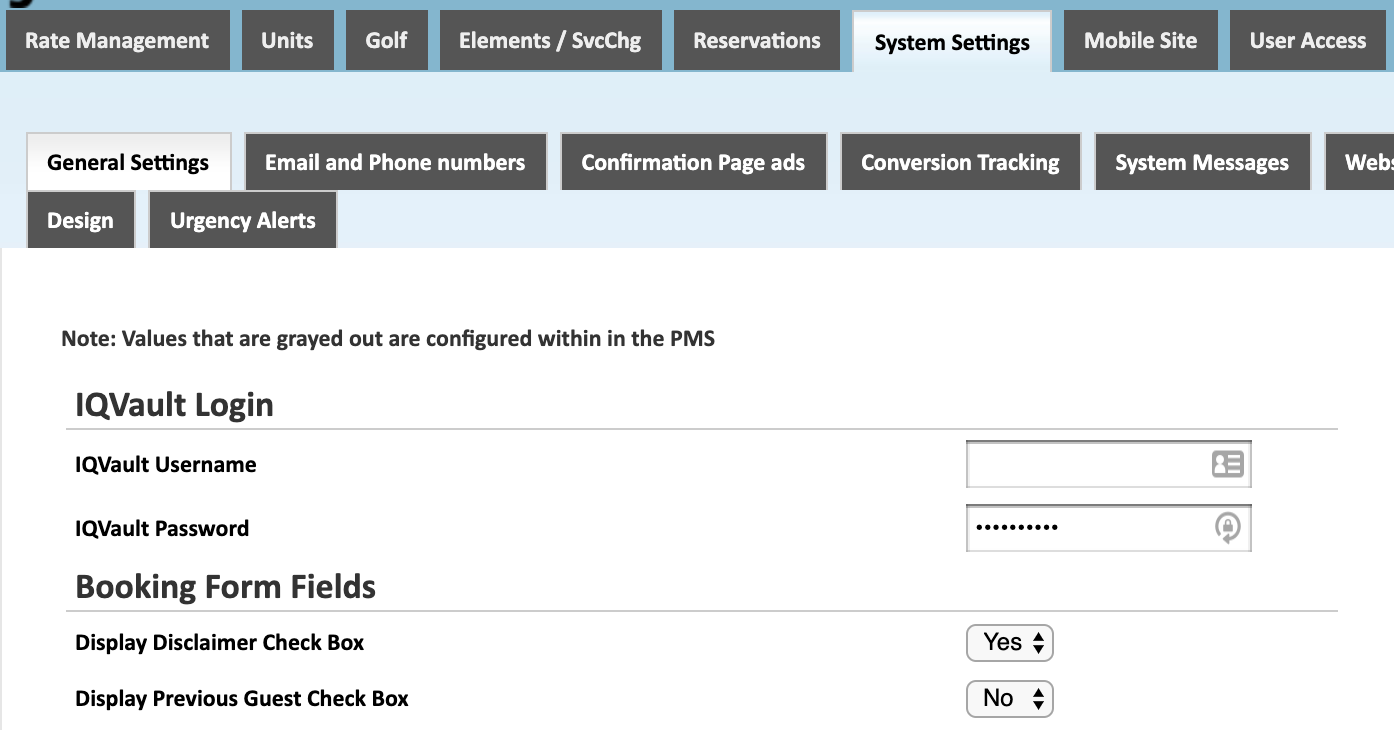
IQVault Login (IQWare Only)
Enter your IQVault username and password here.
Display Disclaimer Check Box
Customer acknowledgment that they have read the disclaimer that is displayed on the booking form.
Display Previous Guest Check Box
Find out if the person booking the reservation is a returning customer.
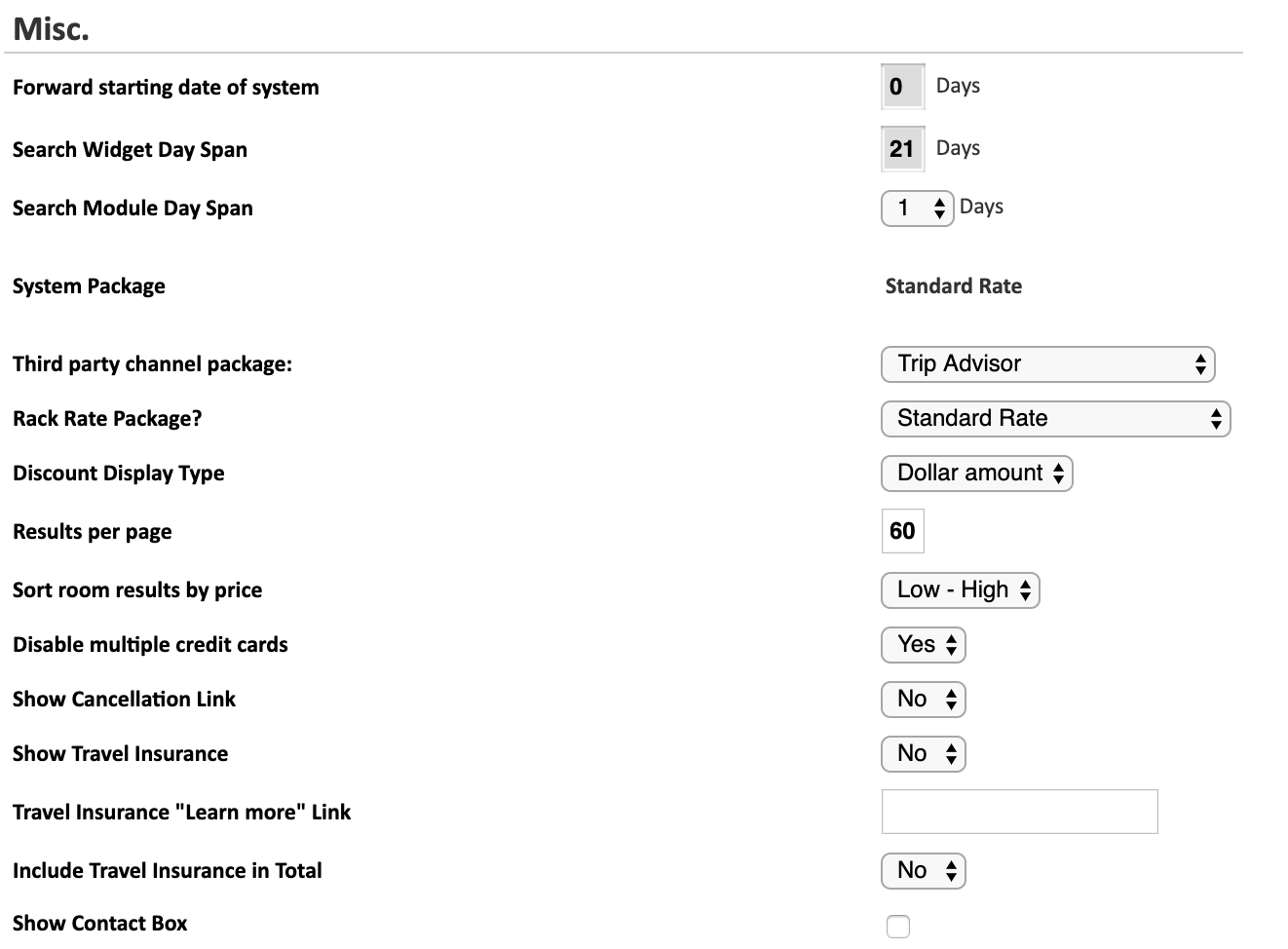
Forward Starting Date of System
Default arrival date value to a number of days out. For example, if this value is set to 2 days and the current date is 03/15/yy, then the default arrival date that the customer will see would be 03/17/yy.
Search Widget Day Span
Default length of nights between the arrival and departure date on the home page search widget. For example, if this value is set 3 nights and the customer selects 03/17/yy as the arrival date, then the departure date will automatically adjust to 03/20/yy.
Search Module Day Span
Default length of nights between the arrival and departure date of the accommodations module. For example, if this value is set to 3 nights and the customer selects 03/17/yy as the arrival date, the departure date will automatically adjust to 03/20/yy.
System Package
Administrative setting that defines the default system package that contains the default rates (rack rates) for the system.
Third party channel package:
Description here
Rack Rate Package
Select the package that is connected to the rate code containing you regular room pricing. This rate code will be used to calculate the discount displayed on the room results page.
Discount Display Type
Select to display the discount on the room results page as a percentage or dollar value.
Results Per Page
Number of rooms displayed on each results page. The default value is 15 room results per page. The image below shows 38 total room results with 15 showing per page and three pages available to view room results on.
Sort Room Results by Price
Display room results in order of price, high to low or low to high. Choose disabled if a custom order has been defined in the order rooms section of the intranet.
Disable Multiple Credit Cards
Select Yes to disable the customer's ability to submit multiple credit cards for payment.
Show Cancellation Link
Controls the display of a link for customers to cancel reservations online. By default this option is turned off and customers must contact the property to cancel a reservation.
Show Travel Insurance (IQware Only)
Display option for customer to purchase additional Travel Insurance on the booking form.
Travel Insurance "Learn more" link (IQware Only)
Insert a link for the customer to read more information about the travel insurance that is offered.
Include Travel Insurance in Total (IQware Only)
Select Yes, to have the travel insurance charge as a line item and included in total stay value.
Show Contact Box
Display contact box on top right corner of the booking engine.
*Based on the configuration of your system some of the above options may not be available. If you would like information about adding a service please call our support center at 843.839.1456
Continue Reading about the other parts of the System Settings:
General Settings -Part 1 (Live Interface)
General Settings -Part 2 (Live Interface)
General Settings - Allocation Rate Settings
Email and Phone Numbers
Confirmation Page Ads
Stay Alert Messages
Tax Settings
Website Information
Comments
0 comments
Please sign in to leave a comment.