
The Restrictions section of the intranet is used to assign arrival day restrictions and date/stay restrictions for each room type.
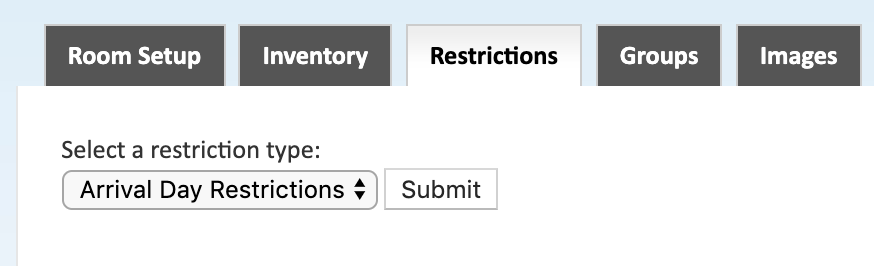
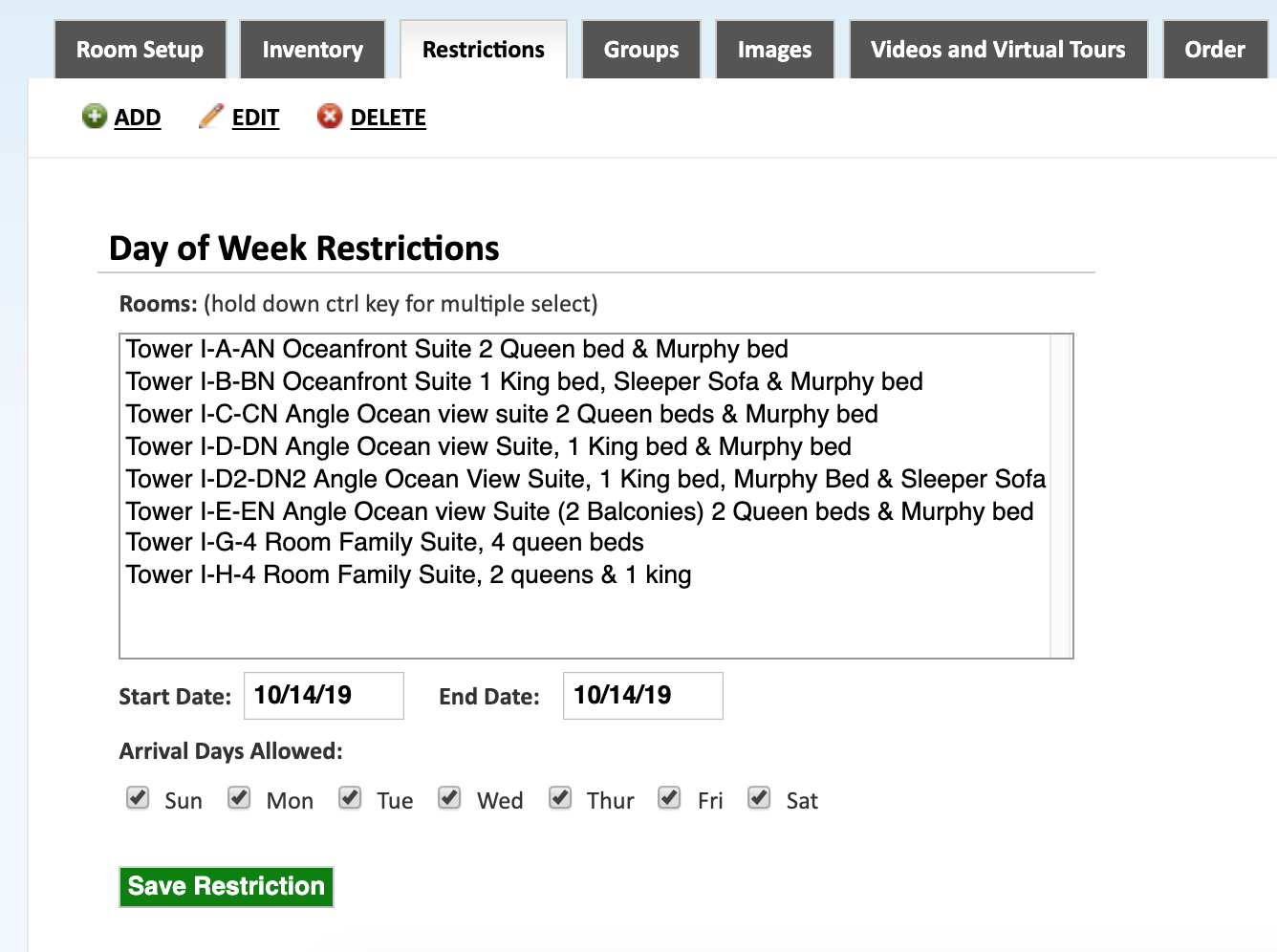
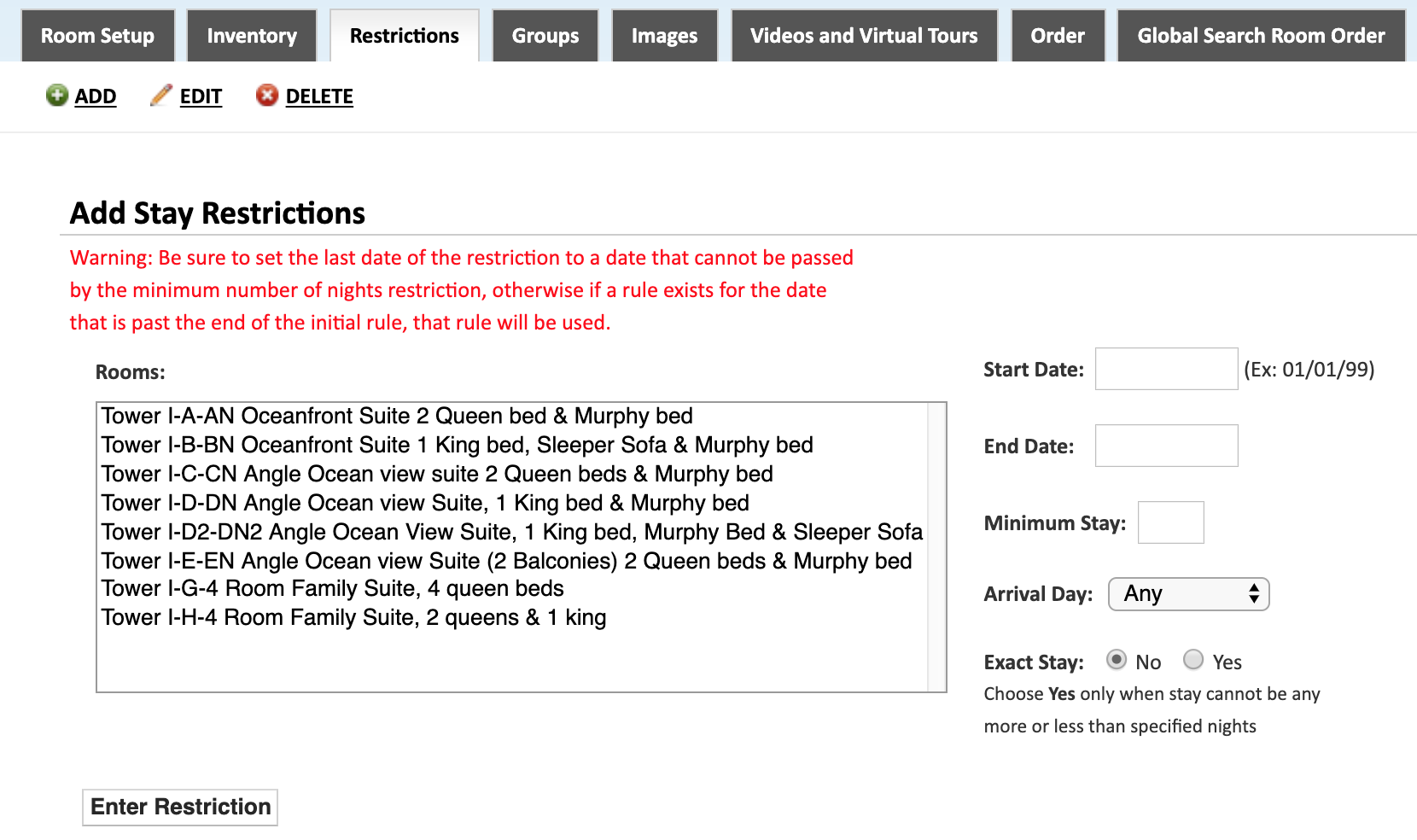
Select a restriction type and hit submit. On the next screen, select "Add". The top image is the screen you will use for adding an Arrival Day Restriction, the second image is the screen to add Room Restrictions.
Rooms
Select the rooms to apply the day of week restriction to.
Start/End Date
Select the date range that the days of week restriction will be applied to.
Arrival Days Allowed
Use the check box for each day to control which days are available for check-in.
Rooms
Select the rooms to apply the stay restriction to.
Start/End Date
Select the date range that the stay restriction will be applied to.
Minimum Stay
Apply a minimum length of stay requirement to the selected room types.
Arrival Day
Select a specific day of the week that is required as the arrival day to book the room type.
Exact Stay
If the length of stay for the room type should equal the minimum number of nights required, select Yes. Again, select Yes only when the stay cannot be more or less than a specific number of nights.
*Based on the configuration of your system some of the above options may not be available. If you would like information about adding a service please call our support center at 843.839.1456
Continue reading about the other sections of the Rooms menu:
Room Setup - Allocation
Room Setup - Guestmate
Room Setup - IQware
Images
Virtual Tour
Groups
Inventory
Restrictions
Comments
0 comments
Please sign in to leave a comment.